


Editorial review updated October 12, 2026. Written for Windows desktop gamers; feature details checked against Opera’s official documentation.
If you game on a Windows PC, your browser is part of the setup. It is where you check a build guide, watch a stream, keep Discord open, browse a wiki, or look up a fix while the game is running. Opera GX for Windows is worth considering because GX Control lets you monitor and limit the browser’s RAM, CPU, and network use while gaming.
This is isGamer’s practical recommendation for Windows desktop gamers: what makes Opera GX useful, where it can help, where it cannot, and how to install it without overcomplicating your setup.

Affiliate disclosure: isGamer may earn a commission if you install Opera GX through a link in this article. That does not change the price of the product or our editorial judgment.
Why is Opera GX a good browser for gamers?
Opera GX is a Chromium-based browser designed around gaming and media use. Its strongest reason to exist is simple: it lets you manage how much of your Windows PC the browser is allowed to use while you play.
For a gamer, that means you can keep a guide, stream, music, Discord, or a game launcher open and still have controls for browser RAM, CPU, and network usage. Those controls do not make the browser a magic FPS tool, but they make it easier to keep background activity under control.
The strengths that matter to gamers
- GX Control: monitor and limit browser RAM, CPU, and network usage.
- A gaming-focused interface: themes, colors, sounds, and visual options that fit a gaming setup.
- Useful side access: keep gaming-related content and media close while you play.
- Better control during multitasking: adjust browser usage instead of closing every tab before launching a game.
- Windows desktop focus: this recommendation and both affiliate offers are for Windows desktop users only.
Opera documents GX Control as a way to keep browser activity from competing as aggressively with games and other demanding apps. The exact benefit depends on your PC, the number of tabs you keep open, and what is running in the background. Read Opera’s GX Control explanation.
isGamer’s recommendation: download Opera GX for Windows
Opera GX visual preview. This is not an installation tutorial.
If you want browser resource controls and gaming-focused customization, Opera GX may fit your Windows setup. Check your operating system and choose the download route that is eligible for your country.
Download Opera GX for Windows — US Offer
Eligibility & Traffic Rules
Both offers are for Windows desktop users. Use the US route for US traffic and the International route only where the offer confirms eligibility. No VPN or proxy traffic, data-center ISP connections, bots, email traffic, incentivized installs, brand bidding, adult or illegal websites. Traffic must follow the offer rules and the user must complete the install and open the browser.
Outside the United States?
If you are a Windows desktop user outside the US, use the international direct-download route below. Availability and eligibility can vary by country, so the offer page—not this article—controls the final eligibility decision. Both routes are for Windows desktop users.
Download Opera GX for Windows — International
How to install Opera GX on Windows
Before you begin: use the appropriate download destination and check the domain and digital publisher shown by Windows before running the installer. Setup screens may differ by browser version.
1. Start the download
Click the matching download button and wait for the installer to finish. Keep the installer in your normal Downloads folder so it is easy to find.
2. Open the installer
Open the downloaded setup file. Windows may ask you to confirm that you want to run it. Check the file name and source before continuing, then follow the on-screen installation steps.
3. Finish the first launch
When Opera GX opens, take a minute to review the welcome options. Choose a theme you can comfortably read, decide whether you want the browser to become your default, and import bookmarks only if you actually need them.
4. Check your setup and open GX Control
After first launch, review the default-browser, privacy, and bookmark import choices. To find GX Control, look for the speedometer icon in the left sidebar. If it is missing, use the sidebar’s three-dot setup menu to enable it. Do not turn on resource limits until you know which apps are running alongside your game.
Best Opera GX settings for a gaming PC
After installation, open GX Control from the sidebar. Opera describes it as the place to manage browser CPU, RAM, and network limits.
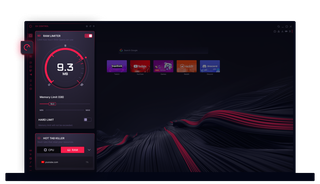
Official Opera visual. Your browser version may look different. Look for the speedometer icon in the left sidebar, or enable GX Control through the sidebar’s three-dot menu. See Opera’s official feature guide for details.
Illustrative animation of browser resource controls, not a screen recording of the actual Opera GX interface. This graphic does not represent measured gaming performance.
Start with a light-touch configuration
Do not set every limit to the lowest possible value. Start with the defaults, open the tabs you normally use, and watch how your games and streams behave. If the browser competes with a game, reduce one limit at a time so you can tell what actually helped.
- Use a RAM limit when many tabs stay open during a session.
- Use a CPU limit if background browser activity creates noticeable spikes.
- Use a network limit when downloads or streaming compete with an online match.
- Close pages you no longer need instead of leaving every tab running.
There is no universal optimal setting. A mid-range system may need a different balance from a high-end desktop, and a competitive online game may be more sensitive to network usage than a single-player title.
What Opera GX can—and cannot—improve for gamers
It can help with browser resource control
GX Control makes browser usage visible and adjustable. That is valuable for players who keep Twitch, Discord, a wiki, music, and a game launcher open at the same time.
It cannot replace hardware upgrades
Opera GX will not turn integrated graphics into a gaming GPU, remove thermal throttling, or guarantee higher FPS. If performance is poor, check the game’s graphics settings, temperatures, drivers, RAM capacity, and storage before blaming the browser.
It may not be the right choice for every user
If you want a completely minimal browser, dislike gaming-oriented customization, or use a non-Windows device, another browser may fit better. The best choice is the one that matches your workflow.
Who should install Opera GX on Windows?
Opera GX is a good fit if you regularly do at least two of these things at once:
- play a game while watching a stream or video;
- keep Discord, music, a wiki, or a build guide open;
- download updates or other files while gaming;
- want your browser to match a gaming setup visually;
- want to see and limit the browser’s resource usage.
Frequently asked questions
Is Opera GX free to download?
Yes. Opera GX is available as a free browser download. This article provides affiliate links for eligible Windows desktop users; you can also consult Opera’s official Opera GX page before installing.
Does Opera GX increase FPS?
Not directly. Opera GX cannot increase the rendering performance of your GPU. Its resource controls may help reduce competition between browser activity and a game, but the result depends on your hardware, game, settings, and background apps.
Can I install Opera GX on a Mac or phone through these links?
The affiliate routes in this article are intended for Windows desktop users. The US route is for US traffic; the international route is for eligible users in other countries. For macOS, Linux, Android, or iOS, use Opera’s official download page and choose the correct version.
Is this the official Opera website?
No. The download buttons use affiliate tracking links. isGamer is not Opera’s official website. For independent product information, consult Opera’s official gaming page.
The bottom line
Opera GX makes the most sense for Windows gamers who want more control over what their browser does in the background. Its RAM, CPU, and network controls are practical when you keep gaming-related tabs and media open, while the customization features give the browser a more gaming-focused feel.
If that sounds useful, install it, open the browser once, and tune GX Control around your real setup. Start conservatively, measure what changes, and keep the settings that make your sessions more comfortable.