


A used gaming laptop can look clean, boot quickly, and still have an overheating GPU, a worn battery, or the wrong charger. Before paying, verify the exact configuration and watch it run a real game on AC power. This used gaming laptop checklist focuses on checks you can make with the seller’s permission, plus the problems worth walking away from. If you’re still choosing specifications, start with our gaming laptop buying guide.
Ask for the full model number, CPU, GPU, RAM, SSD capacity, charger details, repair history, and return terms. Arrange enough time for a cold boot, display checks, hardware diagnostics, and a game session. A quick desktop demonstration is not a gaming test.
Start with the laptop, not the listing
Match the model and serial information on the chassis with the firmware or manufacturer support page. Compare the installed CPU, dedicated GPU, memory, and storage with the listing. Windows Task Manager and Device Manager provide useful starting points, but a GPU name alone does not establish the laptop’s power limit or performance.

Two machines carrying the same graphics badge can behave differently. Use the exact model’s specifications and our guide to checking laptop GPU TGP rather than accepting a desktop GPU benchmark as proof of laptop performance.
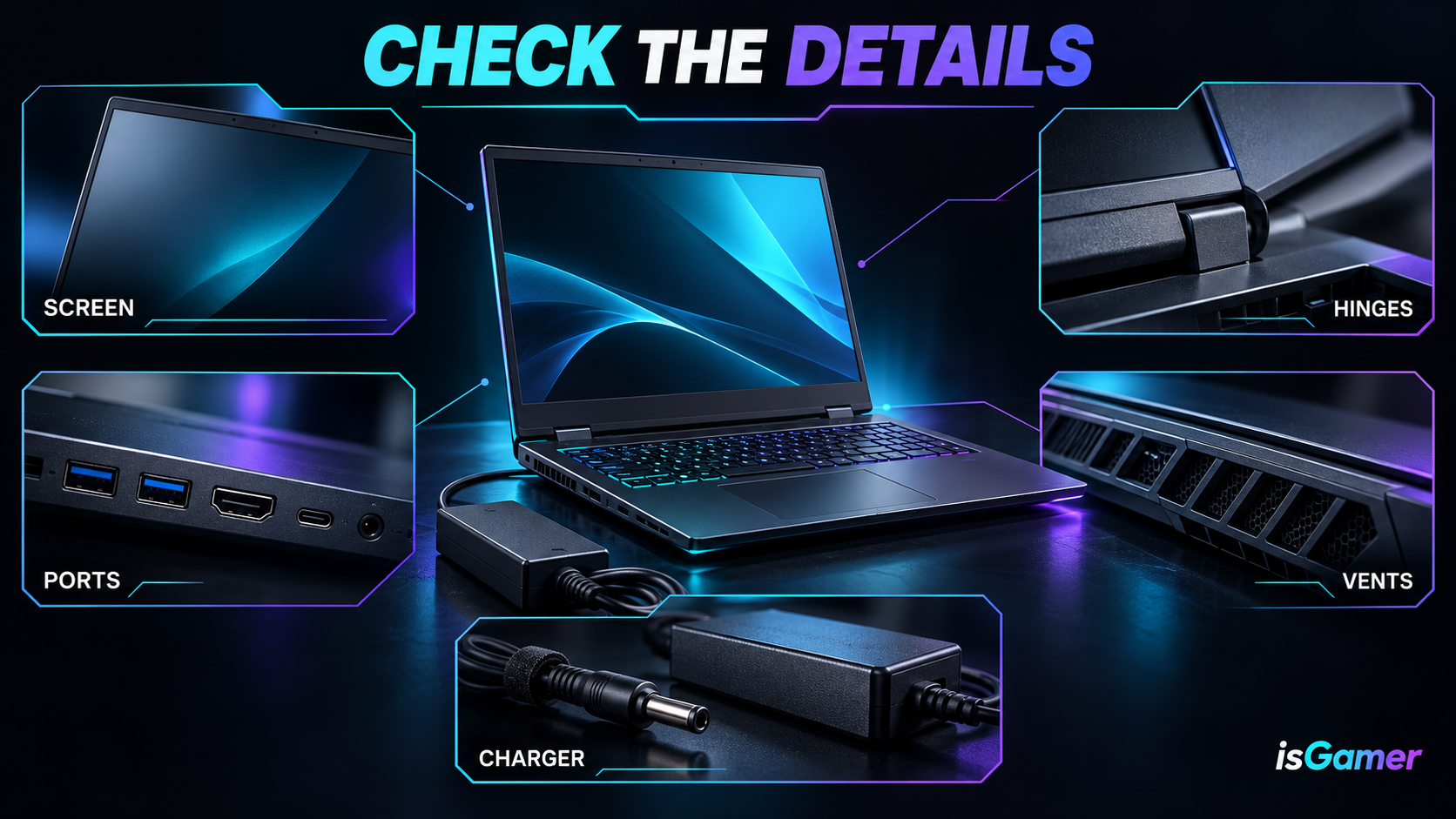
Inspect hinge mounts, screws, vents, ports, and the charger socket. Cosmetic scratches are different from a cracked hinge mount or liquid residue. A raised trackpad or separated chassis can have several causes, including a swollen battery. Stop testing if swelling is suspected; do not press the case closed.
A practical inspection checklist
| Check | What to do | Reason to pause |
|---|---|---|
| Configuration | Match the exact model, CPU, GPU, RAM, and SSD to the listing. | Different parts, missing GPU, or an unexplained device error. |
| Screen and hinges | Display solid colors, adjust brightness, and move the lid gently. | Flickering, lines, damaged mounts, or intermittent display loss. |
| Battery and charger | Read the battery report and confirm the recommended adapter. | Swelling, charging warnings, or an unreliable connector. |
| Gaming stability | Play on AC power with the settings and power profile recorded. | Repeated crashes, persistent artifacts, or shutdowns. |
| Memory and storage | Run the manufacturer’s hardware tests and inspect reported drive health. | Diagnostic failures or storage warnings. |
| Ownership and access | Ask the seller to demonstrate firmware access and a clean handover. | An unresolved BIOS password or company enrollment requirement. |
Check the screen, keyboard, and connections
Open full-screen white, black, red, green, and blue images to look for pixel defects, uneven areas, and flicker. Test at a normal viewing brightness as well as a brighter setting. On an OLED screen, look for persistent image retention on uniform backgrounds; one photograph of a black screen is not a complete panel assessment.
Type with every key, test the trackpad and clicks, and listen through the speakers and headphone jack. Connect to Wi-Fi and check Bluetooth if you need it. Test the USB ports and the actual display output you plan to use. A USB-C connector does not, by itself, guarantee video output or charging support.
Read battery wear without treating it as a verdict
With the seller’s permission, open Command Prompt and run powercfg /batteryreport. Windows shows where it saved the HTML report. Microsoft documents this process in its battery care guidance.
Where available, compare Full Charge Capacity with Design Capacity. The ratio gives an estimate of reported capacity retention, not a guarantee of remaining life. Missing data, battery replacements, and reporting behavior can limit what the figures tell you. There is no universal percentage that makes every used gaming laptop a good or bad purchase.
Disconnect AC power briefly to check ordinary operation, then reconnect it. Confirm the adapter’s voltage, wattage, connector, and compatibility against the exact model’s documentation. A charger that fits is not automatically suitable for gaming. Investigate charging or adapter-recognition warnings before evaluating performance.
Watch a real game run on the correct power profile
Ask to run an installed game or a repeatable benchmark obtained from its official source. Keep the laptop on a hard surface with clear vents and the appropriate charger connected. Record resolution, graphics settings, upscaling, frame generation, and the manufacturer’s performance mode before comparing results.
As a practical screening session, allow around 15–20 minutes of gameplay when the seller permits it. This is an editorial suggestion, not a certification test or proof that the machine has no faults. Watch frame pacing, fan behavior, visual corruption, crashes, and whether performance deteriorates as the laptop warms up.
Heat and audible fans are expected under load. A single temperature reading does not diagnose a fault, and there is no universal CPU or GPU temperature cutoff for every laptop. Compare behavior with the exact model’s specifications and credible testing. Our thermal throttling guide explains why thermal limits and power limits need different interpretations.
Run diagnostics and settle ownership before payment
Use the manufacturer’s diagnostics when available. On supported Dell laptops, for example, Dell documents accessing preboot diagnostics through the F12 boot menu. Other brands and models use different procedures. A passed quick test is useful evidence, but it cannot rule out every intermittent memory or SSD fault.
Ask the seller to demonstrate access to BIOS or UEFI and remove any firmware password they control before handover. Do not accept a promise that a Windows reinstall will fix a firmware lock. For former business or school machines, make sure the organization has released the device from its management and enrollment systems. Microsoft’s Autopilot registration guidance says devices permanently leaving an organization should be deregistered.
A working Windows desktop is not proof that the next setup will be free of organization enrollment. Have the seller arrange the reset after their own backup, and confirm the handover process before entering your personal account. For older hardware, use Microsoft’s PC Health Check to assess Windows 11 eligibility when applicable; an existing installation alone does not establish official support.
Suspected battery swelling, repeated shutdowns, persistent graphical corruption, failed diagnostics, unexplained ownership restrictions, or refusal to demonstrate the machine are reasons to stop. An ordinary worn battery may be a budgeting issue; a locked or unstable laptop needs resolution before payment.
Judge the complete cost
Compare the asking price plus any necessary charger, battery, RAM, SSD, or repair costs with an equivalent new or professionally refurbished machine. Include the value of a written return policy and warranty rather than assuming a private sale offers the same protection.
Before relying on an upgrade to make the deal worthwhile, check our gaming laptop upgrade guide. RAM and storage may be replaceable; the CPU and GPU usually are not. Buy the configuration you can verify today, with the seller’s claims and agreed terms recorded in writing.
Technical references: Dell preboot diagnostics and the Microsoft guidance linked above. This is a buying checklist, not a hands-on review or a guarantee of hardware condition.