



A gaming laptop that starts a session smoothly but loses performance after several minutes might be running into heat-related limits. Thermal throttling is the reduction of CPU or GPU operating speed to control temperature. It protects hardware, but it is not the only reason frame rates decline. Power settings, game updates, memory pressure and shader compilation can create similar symptoms. Diagnose the pattern before assuming that your laptop needs new thermal paste.
What thermal throttling actually means
Processors operate within thermal and power limits set by their design and the laptop manufacturer. When a CPU reaches its temperature control threshold, it can reduce operating speed and power. Intel explains this as a protection mechanism, and emphasizes that laptop vendors set their own operating constraints. A high temperature reading by itself does not prove a fault: the important question is whether performance drops are linked to sustained heat and clock reductions.
Check whether the problem is really temperature
First, reproduce the issue in the same game, level and graphics settings. Note whether frame rates are low from the start or decline only after a period of sustained load. Test while connected to the original charger, with the same performance mode selected each time. If the problem only happens unplugged, the laptop’s battery power limits may explain more than cooling does.

Use a trusted monitoring utility recommended by your laptop manufacturer where possible. Watch CPU and GPU temperatures, utilization, clock speeds and power behavior over time. Record a short baseline, then observe the moment performance falls. No single universal temperature threshold proves thermal throttling across every model; compare the data with the specifications and guidance for your exact hardware.
Read the monitoring data as a pattern, not a magic temperature
A snapshot showing a hot CPU or GPU is not enough to diagnose throttling. Look for a repeatable relationship: temperatures climb during sustained load, one or more clocks drop, and the game’s performance deteriorates at roughly the same time. Power caps can also reduce clocks without a thermal problem, so cross-check the laptop’s selected performance profile and whether it is plugged into the correct charger.
If your monitoring software distinguishes CPU package temperature from individual core temperatures, use the same metric in repeated tests. Laptop vendors may also expose thermal-limit or power-limit flags. These signals are more useful than comparing your numbers to an arbitrary internet threshold. Do not treat illustrative monitoring graphics as real tests or benchmarks.
A controlled test you can repeat
- Restart the laptop, connect the appropriate power adapter and close heavy background tasks.
- Run one reproducible scene at the same resolution, graphics settings and FPS cap.
- Record average FPS, frame times, CPU/GPU clocks, temperature and power where available during the first few minutes.
- Continue long enough to see whether performance drops as the laptop heats up, without running an unsafe stress test.
- Change only one factor, such as clearing an obstructed vent or switching to a manufacturer-provided fan profile, and repeat.
Large frame-time spikes only when new assets load may indicate shader compilation or storage activity rather than a cooling problem. A sustained decline across multiple demanding games is more suggestive of a system-level cause. Check drivers and game updates before concluding a fan or heatsink needs repair.
Simple fixes to try first
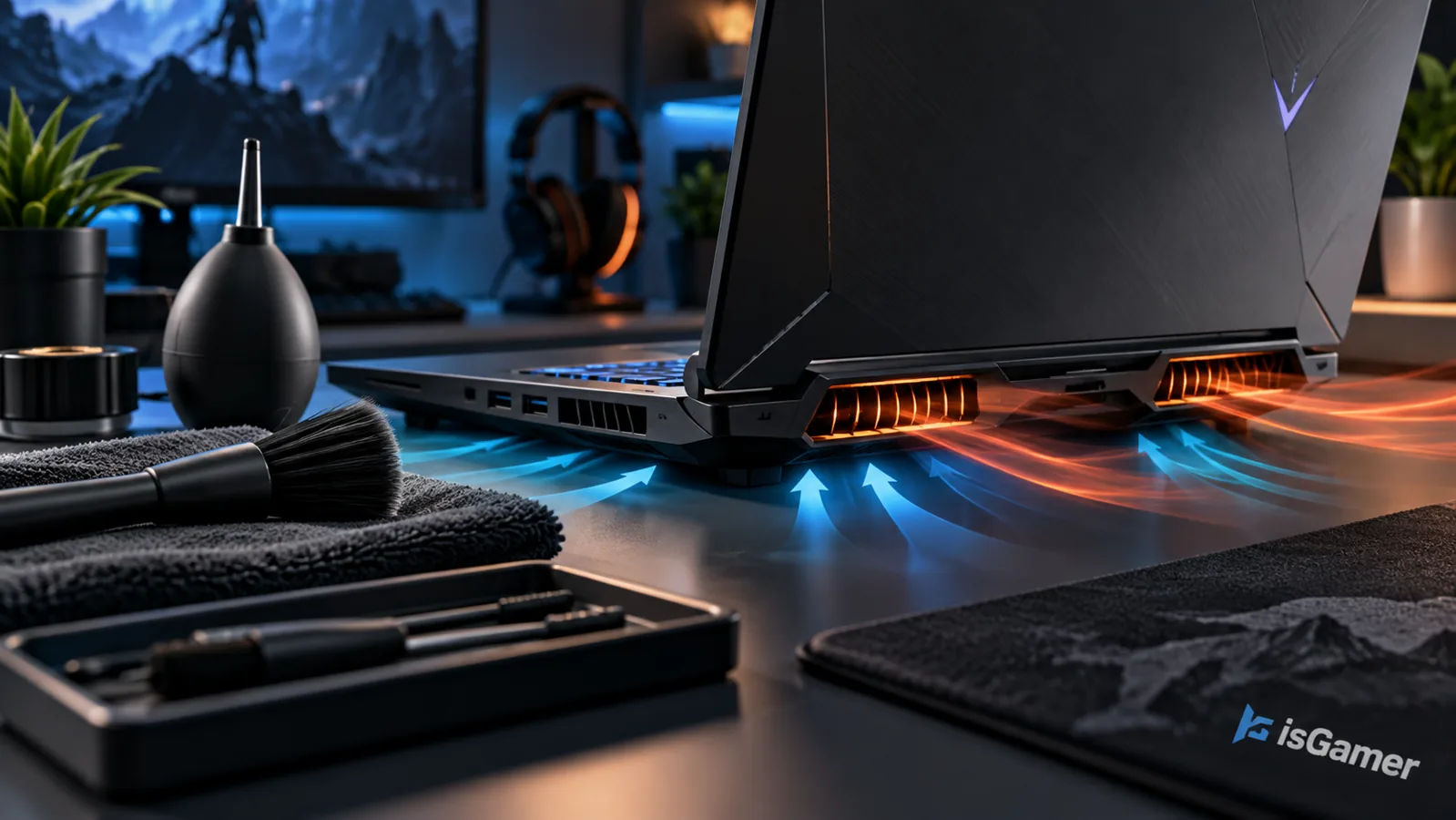
Place the laptop on a firm, level surface. A bed, blanket or soft cushion can obstruct underside vents. Inspect the intake and exhaust areas for dust and make sure the fans can move air. If the laptop has manufacturer performance profiles, compare balanced and performance modes under otherwise identical conditions. Lowering the game’s frame-rate target or demanding graphics options may reduce sustained load.
Do not immediately disable thermal protection, change undocumented voltage settings or install questionable “FPS booster” software. These are poor substitutes for diagnosing a cooling problem. If a cooling pad helps, treat it as an accessory rather than proof that the internal cooling system is healthy.
When cleaning or service becomes necessary
If the machine has become louder, hotter or slower over time, inspect whether ventilation is blocked. Follow the laptop manufacturer’s service documentation before opening the chassis. If warranty coverage applies, contact support first. Thermal paste replacement, fan repairs and heatsink removal vary widely by model and can create more problems when performed incorrectly.
Unexpected shutdowns, a fan that has stopped spinning or clear signs of battery swelling warrant prompt professional attention. Do not continue stress testing a visibly damaged machine.
Thermal throttling versus other causes of stutter
Sudden frame-time spikes with normal temperatures can come from insufficient RAM, storage activity, driver changes, background updates or shader compilation. A game-specific regression after a patch is different from a system-wide decline under sustained load. Our PC game stuttering guide covers a broader troubleshooting path, while the gaming laptop cooling guide explains what to evaluate before buying.
What a successful fix should look like
Repeat the same test after changing one variable. Compare sustained frame rates, frame-time consistency, temperatures and fan behavior. A meaningful improvement should be repeatable, not just a single better-looking benchmark run. If performance still collapses under load after basic checks, manufacturer diagnostics or a qualified repair technician is the next sensible step.




1 comment