


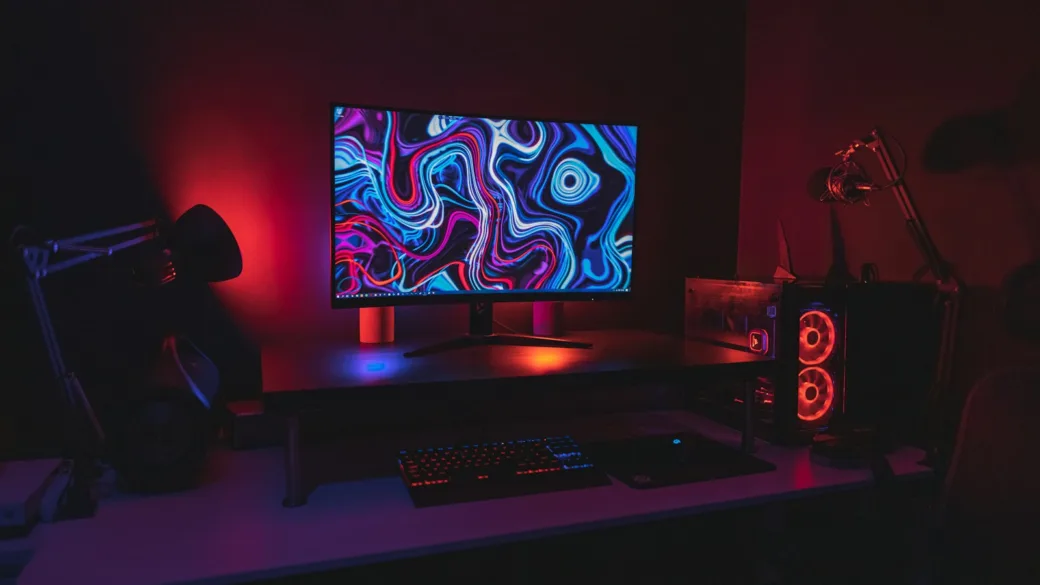
If a game is running slower than expected on Windows 11, resist the urge to install a “one-click FPS booster.” Start by measuring the problem in a repeatable scene, confirming the game uses the correct GPU, and changing one setting at a time. That gives you a much better chance of improving performance without creating new crashes or trading image quality for an invisible gain.
Establish a baseline before changing anything
Choose an in-game benchmark if the title provides one. Otherwise, revisit the same scene using similar camera movement, weather, resolution, and graphics settings. Record average FPS if available, but pay attention to visible pauses and inconsistent frame delivery too. A higher average FPS can still feel worse if frames arrive unevenly.
Check whether you are using the display’s intended refresh rate. A 144Hz monitor running at 60Hz won’t feel like the same setup at its higher refresh setting, even when the game renders more than 60 FPS. Display refresh rate and game FPS are related but different measurements.

Check Windows and your GPU first
Install relevant Windows updates and review the graphics driver provided by your GPU manufacturer. Don’t assume the newest driver will always improve a specific game: if a new update coincided with regressions, review the release notes and the vendor’s recommended rollback process. Restart after changes when required.
If your PC has integrated and dedicated graphics, open Settings → System → Display → Graphics, choose the game, and inspect its graphics preference. On compatible systems, Windows can offer a High performance option. This is especially worth checking on gaming laptops, though a discrete GPU may already be selected automatically.
Windows Game Mode is a reasonable default to test, not a magic FPS multiplier. In Settings → Gaming → Game Mode, enable it, then compare the same gameplay scene with and without it if you suspect a difference.
Microsoft also documents Optimizations for windowed games for eligible DirectX 10 and DirectX 11 titles using windowed or borderless presentation. The feature isn’t a universal switch for every game and may already be enabled on your PC. Test rather than assuming it will improve all titles.
Change graphics settings in the right order
When the GPU is the limiting factor, try the largest visual-cost settings before touching tiny details. The exact impact is game- and GPU-dependent, but resolution scale, ray tracing, shadow quality, volumetric effects and demanding reflections are useful candidates to test.
Lower one demanding option, replay the same scene and compare both smoothness and image quality. If the game supports DLSS, FSR, or another integrated upscaler on your hardware, try an appropriate quality preset and inspect the result on your actual monitor. Upscaling typically reconstructs a higher-resolution output from a lower rendering resolution; it can ease GPU workload at a visible quality trade-off.
Frame Generation is a separate feature. Generated frames can increase displayed frame rate in supported games, but they do not necessarily reduce input latency or improve the underlying simulation rate in the same way as faster rendering. For competitive play, prioritize input feel, native frame delivery and responsiveness instead of pursuing the highest displayed counter.
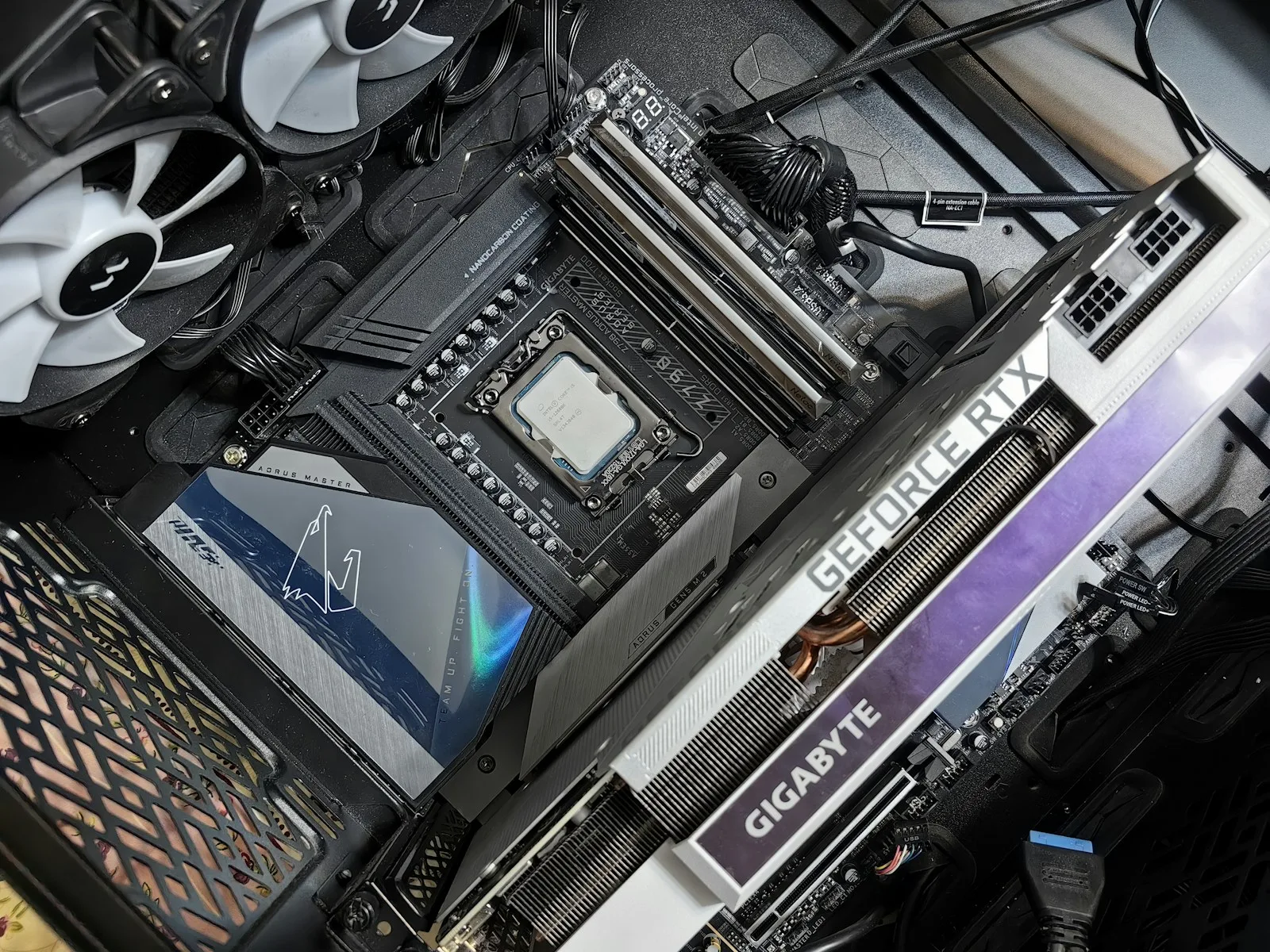
Close unnecessary workloads, then check power and thermals
Open Task Manager and look for background tasks that use significant CPU, memory, disk or GPU resources while you play. Close programs you don’t need, but don’t disable security components or unfamiliar system services merely to free a few percent of usage.
On a laptop, test while connected to its proper charger and using the manufacturer’s intended performance profile. High-performance power settings can increase energy use and heat. They are not always the right choice for quiet or battery-powered play.
If performance drops after several minutes, investigate temperatures, fan behavior and clock speeds using trustworthy monitoring utilities. Thermal throttling can reduce sustained performance, but acceptable temperatures vary by hardware model. Clean vents safely and use the vendor’s service instructions; don’t jump to undervolting, overclocking or firmware modifications as a first fix.
Know when settings won’t solve it
A slow CPU, a game engine limitation, a network hitch or shader compilation can all look like low-FPS problems. If lowering resolution barely changes performance, that is a clue to investigate beyond pure GPU load, not definitive proof of a CPU bottleneck. Our guide to diagnosing gaming stutter walks through the next checks.
For the complete workflow, including how to decide whether a hardware upgrade is justified, see the PC gaming performance optimization guide. If you suspect memory pressure, our RAM and storage guide is a useful related read, especially for gaming laptops.
The best optimization is one you can reproduce: a measured improvement in the game you care about, without unexplained side effects.
Further reading: Microsoft Windows Support · AMD FidelityFX Super Resolution

2 comments