
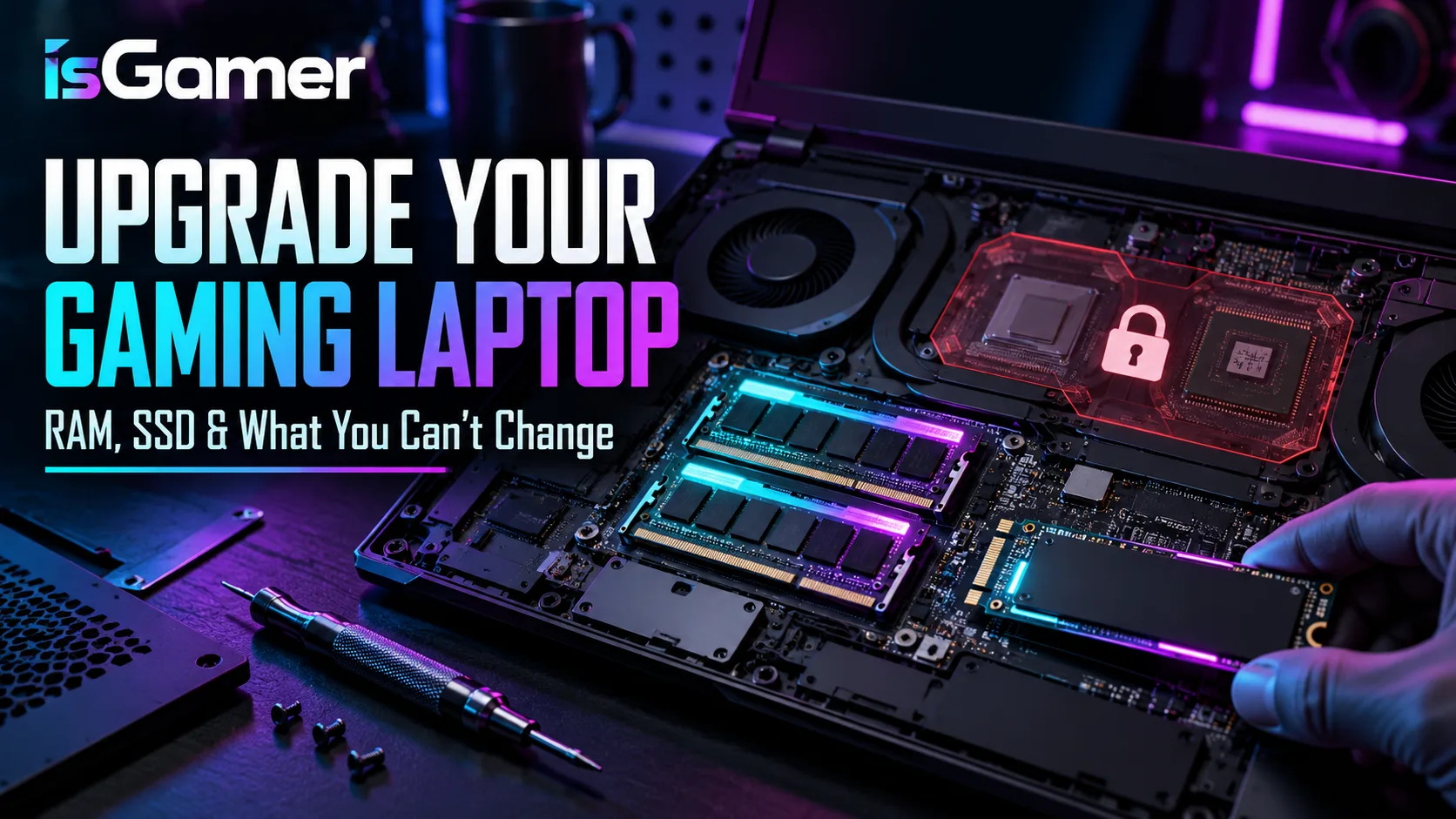
Not every gaming laptop upgrade is equal. RAM and SSD storage can often be replaced, while the CPU and GPU are usually soldered to the motherboard. Knowing the difference before you buy can save money and prevent a frustrating upgrade attempt.
This guide explains how to check upgradeability, what tools you need, and which upgrades actually improve everyday gaming. For a broader buying checklist, start with our gaming laptop buying guide.
What can you usually upgrade?
- RAM modules, if the laptop uses accessible SODIMM slots.
- NVMe SSD storage, if a compatible M.2 slot is available.
- A second SSD, on models with an additional bay or slot.
- Sometimes the Wi-Fi card, although compatibility and antenna access vary.
Modern thin laptops increasingly use soldered memory or single-sided storage layouts, so never assume an upgrade path from the product name alone.

What usually cannot be upgraded?
The CPU and GPU are normally soldered in gaming laptops. That means the processor and graphics chip you buy are the ones you keep. Display replacement is technically possible on some models, but connector type, mounting, brightness, refresh rate, and firmware compatibility make it a specialist project rather than a normal upgrade.
How to check a laptop before buying
- Find the manufacturer service manual or official maintenance guide.
- Check whether the RAM is soldered, slotted, or partly soldered.
- Count the available M.2 slots and confirm supported SSD sizes.
- Check the maximum supported RAM capacity and memory type.
- Look for warranty and access-panel restrictions in your region.
- Read a teardown of the exact model, not only the product family.
How much RAM should you install?
For a new gaming laptop, 16GB is a practical starting point and 32GB gives more room for modern games, browser tabs, streaming, mods, and creative work. If the laptop has two slots, matching modules can help maintain dual-channel performance.
Our RAM and storage guide covers the common 16GB versus 32GB decision in more detail.
When should you upgrade the SSD?
Upgrade the SSD when your game library is constantly full, when a 512GB drive leaves too little free space, or when the original drive is slow or failing. A 1TB replacement is a practical step for many players, while 2TB makes sense for large libraries and creators who store media locally.
Before buying an SSD, confirm the interface, physical size, supported capacity, and whether the laptop has a second slot. Storage capacity does not improve frame rates by itself, but it can make installs and load management much easier.
Upgrade steps and safety checklist
- Back up important files before opening the laptop.
- Shut down fully, unplug the charger, and follow the service manual.
- Use a small precision screwdriver and avoid forcing clips.
- Ground yourself before touching memory or storage contacts.
- Install the part firmly, then verify it in BIOS and Windows.
- Clone or reinstall the operating system carefully when replacing the boot drive.
Does upgrading RAM or SSD improve FPS?
An SSD upgrade usually improves capacity and load times, not raw FPS. RAM can improve consistency when the old configuration is too small or running in a constrained single-channel mode. If your GPU is the bottleneck, upgrading memory will not turn the laptop into a faster graphics system.
For GPU power, VRAM, and cooling, read our GPU and TGP guide and our guide to display and cooling choices.
Frequently asked questions
Can I upgrade the GPU in a gaming laptop?
Usually not. Most laptop GPUs are soldered. A small number of older or specialist systems use modular graphics hardware, but they are exceptions and should not guide a normal purchase.
Is 32GB RAM overkill for gaming?
It is not necessary for every player, but it is a sensible long-term target for multitasking, streaming, mods, and heavier games. Upgradeability makes the decision easier.
Should I upgrade storage or RAM first?
Upgrade the part that is limiting you. Choose RAM when games or applications are running out of memory; choose storage when the drive is full or too small for your library.
Bottom line: upgradeability is part of the laptop value proposition. A slightly less flashy model with accessible RAM and SSD slots can remain useful much longer.
Check the Service Documentation Before You Buy
Upgradeability varies by model. Dell’s upgrade guidance notes that laptop memory and storage may be replaceable while CPUs and graphics adapters are commonly integrated. Dell also recommends verifying the supported M.2 drive before buying an SSD.
Shopping shortcut: look for a service manual, count the RAM and M.2 slots, and confirm maximum capacity before buying the upgrade.
For the wider balance between upgradeability, storage, memory, and performance, compare this guide with Intel’s gaming laptop selection guide. The exact service manual for your model remains the final authority before opening the chassis.