



A gaming laptop can last through a long afternoon of classes or web browsing and still struggle to finish a gaming session unplugged. That isn’t necessarily a faulty battery. A demanding game can keep the CPU and dedicated GPU working hard while the display, fans and other components continue drawing power. To judge battery life properly, you need to separate everyday use from gaming and compare laptops under similar conditions.
Gaming battery life and everyday battery life are different
When a manufacturer advertises battery life, look for the test conditions. Video playback, light browsing and gaming are not interchangeable workloads. Even two games on the same machine can have very different power demands: a lightweight indie game with a capped frame rate may run far more efficiently than a modern open-world title at high settings.
Screen brightness, resolution, refresh rate, background applications, GPU switching and the selected power profile can all change the result. Battery capacity matters, but it is only one piece of the comparison.

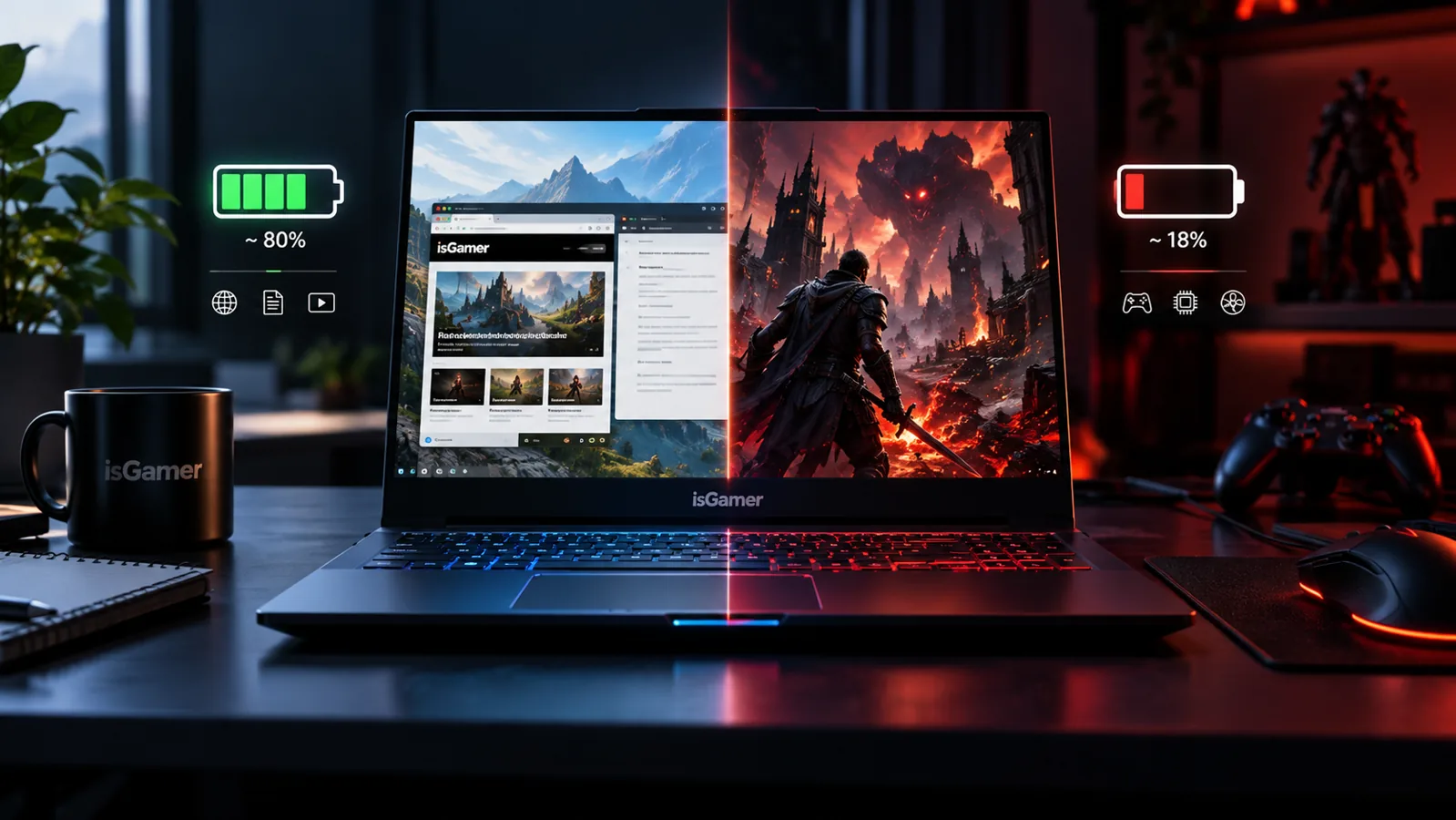
Why gaming drains a laptop so quickly
During demanding gameplay, the graphics processor renders frames continuously. Higher graphics settings and uncapped frame rates can increase the power needed to maintain performance. The CPU also has to handle game logic, simulation, streaming assets and background work. Fans and the display consume additional energy.
Many gaming laptops reduce performance when disconnected from the charger, either through firmware power limits, GPU settings or Windows power controls. That can lower frame rates, but it may also make the laptop more useful away from a wall socket. Treat the unplugged experience as a separate performance mode, not as a direct extension of plugged-in benchmarks.
How to interpret watt-hours without inventing a runtime
Battery capacity is usually quoted in watt-hours (Wh). Runtime depends on how fast the whole laptop consumes that energy. A simple illustration: a 60Wh battery powering a constant 30W load would theoretically last about two hours. Real laptops do not draw a constant amount of power, and the usable energy, conversion losses, and battery condition can change the outcome. This is an explanation of the units, not a prediction for any specific model.
Two notebooks with identical Wh ratings can behave very differently if one has a power-hungry dedicated GPU active and the other switches to efficient integrated graphics. The only useful comparison is a repeatable test with documented brightness, power mode, network activity, refresh rate and workload. Look for tests using the exact display and processor configuration you intend to buy.
A sensible unplugged-gaming checklist
- Start a game on battery with a known power mode and graphics preset.
- Choose a frame-rate cap that feels smooth rather than leaving FPS unlimited.
- Monitor the battery percentage over a brief representative session; do not claim the result predicts a full charge perfectly.
- Check for major frame-time drops and power-limit behavior, not just average FPS.
- Repeat at similar brightness and settings if you compare two machines.
Remember that charging during intensive gaming can be affected by charger wattage and the manufacturer’s power design. USB-C charging support does not automatically mean the notebook can maintain its highest gaming performance over USB-C.
What to check before buying
Start with the battery capacity in watt-hours (Wh), then look for reliable tests that describe the exact laptop configuration and workload. Battery capacity alone cannot predict runtime without knowing power draw.
- Actual workload: Find separate results for web browsing, video playback and gaming if available.
- Display configuration: High brightness, fast refresh rates and higher resolutions can affect energy use.
- GPU behavior: Check whether the machine can switch between integrated and dedicated graphics for ordinary tasks.
- Charger requirements: Determine whether USB-C charging is supported, and whether it provides enough power for your intended use. Do not assume a portable USB-C charger can sustain full gaming performance.
- Battery service: Check the manufacturer’s warranty and battery replacement documentation.
If you are comparing specifications more broadly, start with our gaming laptop buying guide, which covers the other trade-offs that determine whether a configuration makes sense.
How to extend battery life without questionable tweaks
Windows provides several built-in controls that are worth trying before downloading third-party “optimizer” apps. In Settings → System → Power & battery, choose a more efficient power mode while unplugged when the option is available. Microsoft’s guidance also recommends adjusting screen brightness, sleep behavior and Energy saver settings. Menu names can vary with your Windows version and laptop manufacturer.
For less demanding games, try a sensible frame-rate cap and lower visual settings. This reduces unnecessary rendering work, though the benefit depends on the game and laptop. Some systems also offer manufacturer-specific eco modes or GPU-switching controls; check the laptop’s own documentation before changing them.
For everyday battery use, close background apps you do not need, reduce brightness to a comfortable level and use integrated graphics when the machine supports automatic switching. If the goal is maximum FPS, plug in the manufacturer’s recommended charger rather than expecting the same performance on battery.
How to check whether your battery is wearing out
A laptop that used to last much longer under the same conditions may have reduced battery capacity. Windows includes a built-in report. Open Command Prompt, run powercfg /batteryreport, then open the HTML file at the location displayed by Windows. The report provides battery usage information and reported capacity figures.
Compare Full Charge Capacity with Design Capacity if both are available, while remembering that the report is an estimate and not a laboratory measurement. Also consider recent usage, background activity and whether power settings have changed. A suddenly swollen, damaged or unusually hot battery needs professional attention, not a software tweak.
A practical buying decision
Choose according to where the laptop will spend most of its time. For a primarily plugged-in gaming setup, cooling, GPU performance, screen quality and noise may be more important than squeezing out the longest unplugged session. If the machine travels between classes, work and home, pay closer attention to browsing endurance, weight, charger size and efficient everyday operation.
For a more complete look at screens and thermals, see our gaming laptop display and cooling guide. The right laptop balances plugged-in game performance with the kind of battery life you will actually use.



1 comment