



Two gaming laptops can carry the same GeForce RTX GPU name and still behave differently under sustained load. Before buying, check the exact GPU power specification for the laptop configuration you are considering. Start with the manufacturer’s specification sheet, match the full model or SKU, and look for labels such as TGP, Maximum Graphics Power, or GPU power. If the number is missing, ask the seller or manufacturer to confirm it in writing rather than guessing from the GPU name.
Start With the Exact Laptop Model, Not the GPU Name
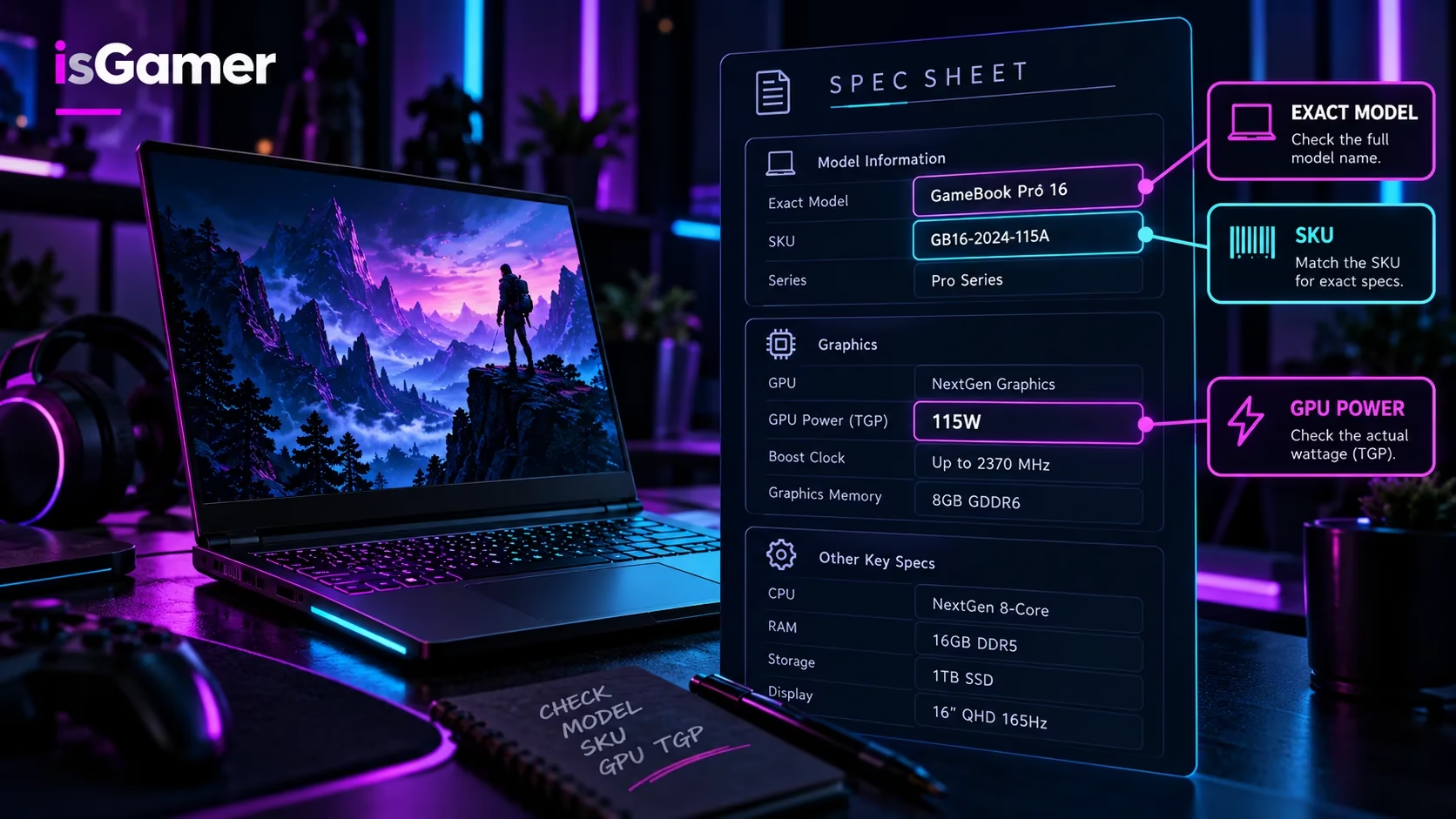
Copy the full manufacturer model number from the retailer listing. A product family name such as “Legion Pro” or “ROG Strix” is not precise enough: different configurations can use different GPUs, power limits, displays, and cooling hardware. Look for the manufacturer’s part number or SKU and check that the listed CPU and GPU match the product you plan to order.
Find the official product specifications or support page for that configuration. On Lenovo laptops, for example, the Product Specifications Reference (PSREF) often includes a graphics table with a TGP column. One official Legion Pro 7 specification lists GPU configurations with distinct TGP values, making it much more useful than a generic store card that says only “RTX graphics.”

Look for TGP, Maximum Graphics Power, or GPU Power
Manufacturers don’t always use identical terminology. Search the specification sheet for “TGP,” “graphics power,” “GPU power,” and “Dynamic Boost.” NVIDIA’s RTX 50-series laptop specifications show that a GPU family can support a range of power configurations. That range is not a promise that every laptop using the chip runs at the highest figure.
Don’t mistake the wattage of the laptop’s power adapter for GPU TGP. A 240W adapter powers the entire system, not just the graphics chip. Likewise, a large VRAM number or a high boost-clock figure doesn’t independently confirm a particular laptop’s GPU power limit.
Check Whether the Number Includes Dynamic Boost
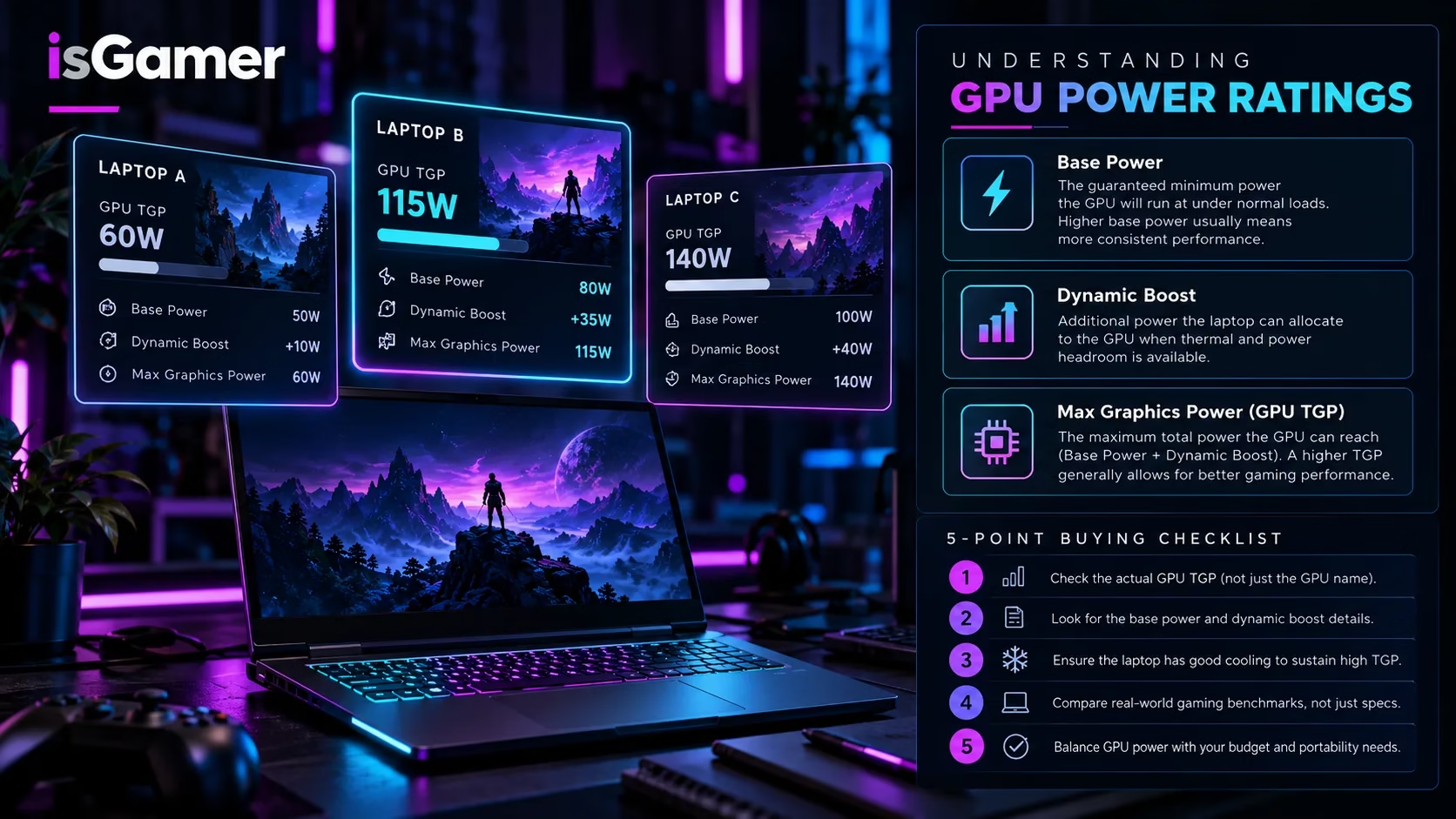
Some manufacturers advertise a maximum GPU power figure that can include additional power allocated through technologies such as Dynamic Boost. Read the footnotes: a maximum rating may describe a supported peak configuration, not a constant level during every game.
Power delivered in real play also depends on the cooling system, power profile, CPU workload, room temperature, and whether the laptop is plugged in. Treat advertised maximum graphics power as one specification to compare, not a standalone FPS benchmark. For the bigger picture, see our gaming laptop GPU and TGP guide.
Can You Check GPU Power in Software?
If you already own the laptop or can inspect a store demonstration unit, manufacturer utilities and GPU monitoring tools may help you observe graphics power under load. However, a live power reading is not the same thing as a verified manufacturer TGP specification. A GPU drawing less power in a menu, a lightweight game, or a temperature-limited test does not necessarily mean the machine has a low configured ceiling.
Some driver or system-information panels may report a maximum graphics power value, but reporting varies by hardware and software version. Confirm what the number actually represents before using it to compare two products. For a laptop you haven’t bought yet, the correct manufacturer’s product documentation remains the first place to look.
What if the Store Doesn’t List TGP?
First, search the manufacturer’s product page using the exact SKU. Then look for a downloadable specification PDF or official support document. If those don’t settle it, contact the manufacturer or retailer and ask: “What is the maximum graphics power, in watts, for the GPU in this exact model/SKU, and does the advertised figure include Dynamic Boost?”
Save their written response alongside the product listing. If you still can’t establish the specification, mark the TGP as unverified. Don’t assume it matches another model with the same RTX badge. Independent reviews of the exact configuration can add useful context, but make sure the review identifies the SKU, operating mode, and test conditions.
Before You Buy: A Five-Point GPU Power Check
- Match the full SKU: verify the CPU, GPU, region, and model number.
- Find an official spec: search for TGP, Maximum Graphics Power, or GPU power.
- Read the fine print: check whether a headline wattage includes Dynamic Boost.
- Check the cooling and review context: look for sustained gaming behavior of that exact model, not an unrelated laptop with the same GPU.
- Keep a record: save the specification URL or get written confirmation before paying.
Power limits matter, but they aren’t the entire purchasing decision. Display quality, cooling, noise, RAM, SSD upgradeability, price, and warranty still deserve attention. Our gaming laptop buying guide puts those trade-offs into one practical checklist. The goal isn’t to buy the laptop with the biggest wattage on paper; it’s to know exactly what hardware you’re paying for.




1 comment