


A gaming RAM upgrade is straightforward when the kit is compatible. The critical decision happens before the case opens: determine whether you need more capacity and which exact memory modules your system supports. Upgrading RAM can relieve memory pressure, but it cannot solve every stutter.
For buying context, read our gaming RAM guide for 2026 and the capacity-by-workload breakdown first.
Step 1: Identify your motherboard and memory type
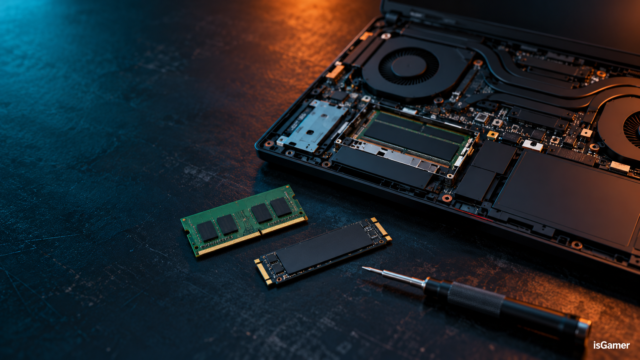
Find the motherboard or laptop model in its official support documentation. Confirm DDR generation, module form factor, supported capacity, slots, and any supported-kit or compatibility list. DDR4 and DDR5 are not interchangeable. A desktop DIMM doesn’t belong in a laptop SO-DIMM slot.

Windows Task Manager may display installed capacity, speed and slots in use, but the manufacturer’s manual is the authority. Many gaming laptops have soldered RAM or upgrade limits; don’t assume access to a removable slot.
Step 2: Select a compatible kit
For many desktop builds, two compatible RAM modules are a practical layout. Adding a kit to an existing one can be less predictable than replacing it with a matched set. Check your actual motherboard manual for preferred two-module slots; A2 and B2 are common but not universal.
Memory speed claims also need context. XMP and EXPO profiles depend on processor, motherboard, BIOS and kit compatibility. An advertised profile isn’t guaranteed on every system.
Step 3: Shut down and handle parts safely
Power off fully, switch off the power supply where applicable, unplug the PC and follow the manufacturer’s handling advice. Work on a stable surface and take precautions against static discharge. Hold modules by the edges without touching metal contacts.
Open the case, locate RAM slots and release their retaining latches following the motherboard instructions. Different board designs use different latch mechanisms.
Step 4: Seat the new memory
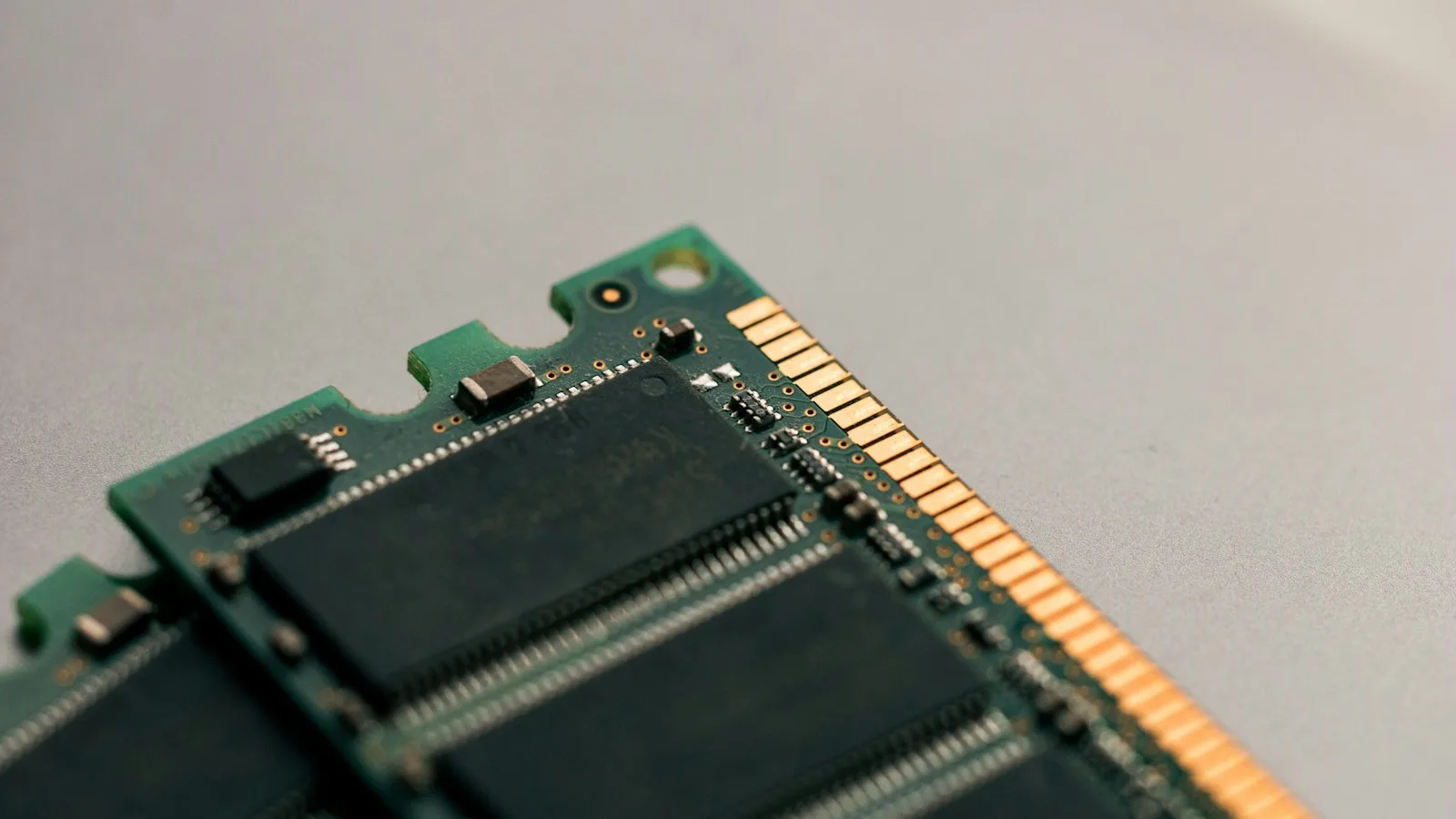
Match the module’s notch to the slot. Gently apply even pressure until it is fully seated and the retention mechanism clicks or engages as your manual specifies. Stop if it doesn’t line up; never force a different memory type into the slot.
Reassemble, reconnect power and start the PC. The first boot after changing memory may take longer while the motherboard performs memory training. Follow your motherboard’s troubleshooting documentation if startup fails.
Step 5: Verify the upgrade
Check BIOS/UEFI and Windows for the installed capacity. Confirm that both modules are recognized. If a supported memory profile is enabled, test stability afterward using a diagnostic and your normal demanding workloads. A short test cannot guarantee the absence of every memory error.
If the machine fails to boot, power down before reseating modules or testing one at a time. Return to supported defaults and consult your motherboard vendor’s troubleshooting instructions.
Mistakes worth avoiding
- Buying DDR5 for a DDR4 motherboard, or vice versa.
- Assuming a gaming laptop’s RAM can be replaced.
- Mixing kits without checking supported configurations.
- Using an unsupported slot layout or speed profile.
- Expecting additional RAM to cure GPU, CPU, network or storage bottlenecks.
Your best upgrade is the one that removes an actual limitation. Check how much RAM your gaming workload needs rather than shopping by capacity alone.
Reference: Consult the exact motherboard or laptop manufacturer’s official user manual, service instructions and qualified memory list for model-specific installation steps.